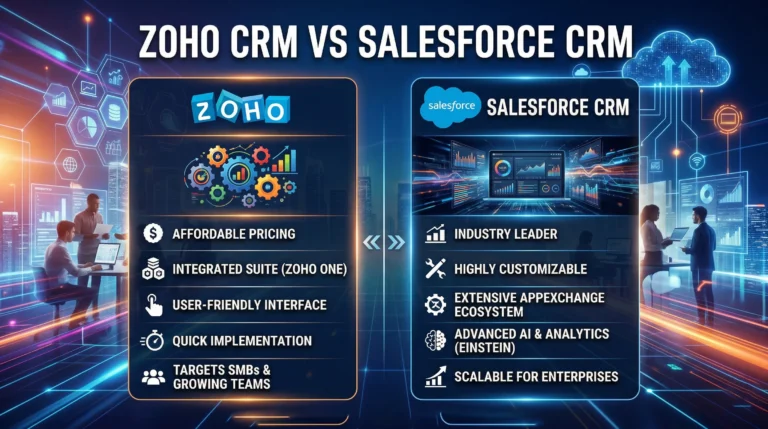
Customer relationships are the backbone of any successful business. But managing leads, tracking interactions, and nurturing customers can get overwhelming without the right system in place. That’s where Zoho CRM comes in.
Zoho CRM is a powerful, easy-to-use platform that helps businesses organize sales processes, automate workflows, and improve customer engagement. If you’re new to it, here’s a step-by-step guide to getting started in just 7 easy steps.
1. Sign Up and Set Up Your Account
Head over to the Zoho CRM website and sign up for a free trial. Once you log in:
- Add your company details (name, logo, time zone, currency).
- Choose your preferred edition (Free, Standard, Professional, Enterprise, or Ultimate).
- Invite team members to collaborate.
2. Customize Your Modules
Every business has unique processes. Zoho CRM allows you to customize modules such as Leads, Contacts, Accounts, and Deals. You can:
- Rename modules to match your business terminology.
- Add custom fields and layouts.
- Reorder tabs for easier navigation.
3. Import Your Data
Migrating from spreadsheets or another CRM? Zoho CRM makes it easy to import data.
- Upload files in CSV, XLS, or VCF format.
- Map fields correctly (e.g., “Email Address” → “Contact Email”).
- Deduplicate data to avoid clutter.
4. Set Up Your Sales Pipeline
The pipeline is where your deals live. Customize it to reflect your sales process:
- Define deal stages (e.g., Prospecting → Negotiation → Closed Won/Lost).
- Assign probability percentages for forecasting.
- Use pipeline views to track progress visually.
5. Automate Workflows
Save time and improve efficiency with automation:
- Create rules for lead assignment (e.g., by region or product).
- Automate follow-up emails or reminders.
- Set up workflows for deal stage updates and task creation.
6. Integrate with Other Apps
Zoho CRM integrates with both Zoho apps and third-party tools:
- Connect with Zoho Campaigns, Books, Desk, or Analytics.
- Integrate Gmail, Outlook, or Slack for communication.
- Use APIs and Zapier for advanced integrations.
7. Track Performance with Reports & Dashboards
Make data-driven decisions using Zoho CRM’s analytics tools:
- Use pre-built reports for sales trends, team performance, and pipeline health.
- Create custom dashboards with charts and KPIs.
- Enable forecasting to predict revenue growth.
Final Thoughts
Getting started with Zoho CRM doesn’t have to be overwhelming. By following these 7 easy steps, you’ll have a fully functioning CRM system that helps you manage leads, automate processes, and close more deals.
Whether you’re a small business or a growing enterprise, Zoho CRM gives you the tools to build stronger customer relationships and drive sales success.